Local canvas processing
Images are loaded as local browser object URLs and stitched with HTML canvas, so the workflow stays on your device.
We use cookies
Essential cookies keep the app working. Optional analytics, support, and marketing cookies help us improve the site and services. Cookie Policy.
Free Image Stitcher Online
Combine 2-9 JPG, PNG, WEBP, or GIF images into one downloadable PNG or JPG. The tool supports drag-to-reorder, layout templates, output ratios, gap control, background color, and per-image crop zoom. It runs locally in your browser and does not use AI credits.
Merge photos side by side or top to bottom directly in your browser.
Upload at least 2 images to start stitching
Supports 2-9 images · choose a layout · drag to reorder · 100% private
What this tool actually does
This page is a working image stitcher, not an AI generation form. It combines local files into a canvas preview, lets you adjust the layout, then downloads the finished image from the browser.
Images are loaded as local browser object URLs and stitched with HTML canvas, so the workflow stays on your device.
Choose rows, stacks, 2x2 grids, 3x3 grids, and mixed row templates that update based on how many images you upload.
Set output ratio, gap size, white/black/transparent background, PNG or JPG format, and per-image crop zoom.
Examples
These examples use local ImagineClip assets only. They show the same kind of rows and grids you can create with the free image stitcher above.
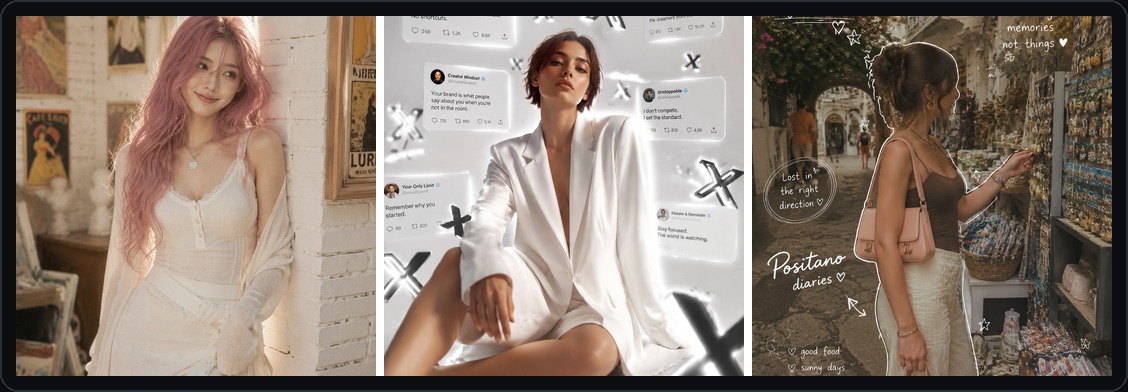
A three-image row is useful for comparing outputs, references, product views, or before-and-after results in one file.
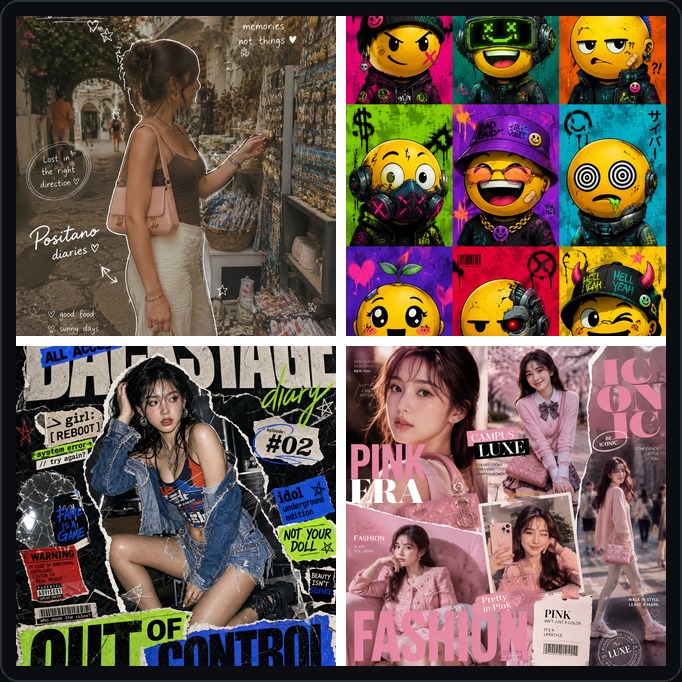
A balanced four-image grid works well for mood boards, compact visual summaries, and documentation screenshots.
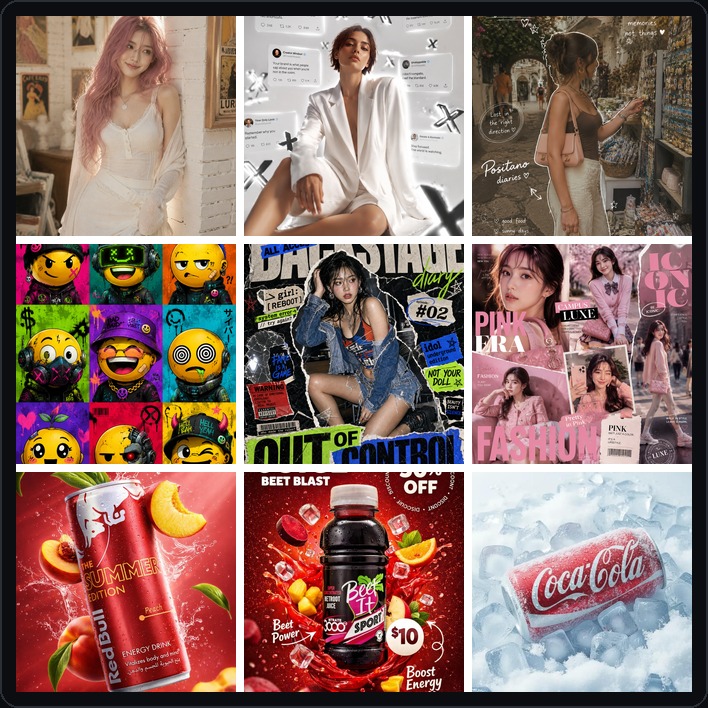
A nine-image grid gives you a clean contact sheet for social posts, reference boards, and visual collections.
Key facts
These specs match the current tool behavior on this page, so users and search engines can understand the exact capabilities before uploading files.
Workflow
The workflow is intentionally simple: add images, choose a layout, adjust the output, then download the combined file.
Upload 2-9 JPG, PNG, WEBP, or GIF images from your device.
Drag image rows to set the order before stitching.
Choose a layout template, output ratio, gap size, background, and export format.
Click a preview tile if you need to zoom its crop, then download the PNG or JPG.
Use cases
The tool is built for practical image merging tasks where a single combined file is easier to share, compare, or reuse.
Place two or more images in one row to compare AI outputs, before-and-after edits, product shots, or design variants.
Combine frames into a single reference board before using image-to-video or video generation workflows.
Upload nine images and choose the 3x3 layout for mood boards, thumbnails, contact sheets, or visual collections.
Merge screenshots into one clean PNG or JPG for tutorials, bug reports, release notes, and internal docs.
Limits
Clear limits help users choose the right tool and prevent the page from promising features that are not actually available.
This is not an AI image generator, enhancer, or background remover.
Images are center-cropped into equal-size tiles so mixed aspect ratios stay aligned.
Large source images are scaled down for stable browser canvas rendering; each tile is capped at a 900px edge internally.
GIF files can be used as input images; the stitched export is a static PNG or JPG.
Transparent background is only meaningful for PNG export; JPG output uses a solid background.
The tool needs at least two images before layout, ratio, gap, preview, and export controls appear.
FAQ
Answers about image stitching, PNG/JPG export, GIF input, ordering, transparency, and browser-local processing.
Yes. The tool automatically unlocks layouts based on how many images you upload, from 2 images up to 9 images.
Yes. GIF files are supported as inputs. The stitched export is a static PNG or JPG, not an animated GIF.
No. Images are read in your browser and rendered locally with HTML Canvas, so the files stay on your device during stitching.
Use PNG if you need transparency. JPG does not support transparent backgrounds and will render with a solid background instead.
Yes. You can drag the uploaded image list to reorder the stitch before generating the final result.
The tool centers and scales images into the layout you choose. It keeps the result crisp for browser export, but the final file is still a new render rather than the original source file.